How do you install LosslessCut with winget?
- Copy the install command. Select Copy in the install box to copy the winget command for LosslessCut.
- Open the Run box. Press Win+R on the keyboard.
- Paste and run. Press Ctrl+V, then Enter. A window opens, downloads and installs LosslessCut, and closes by itself.
- Start LosslessCut. Open a new PowerShell or Windows Terminal window, type LosslessCut and press Enter.
The command installs package ch.LosslessCut for your user account, so there is no admin prompt, and winget checks the file's SHA-256 against the manifest before it unpacks anything. The package is a community repackage of the official Windows 7z, re-zipped without changes; the developer does not publish to winget himself. If Windows says winget is not recognized, install App Installer from the Microsoft Store, or use the official Download button instead. Run winget upgrade ch.LosslessCut later to update.
How do you trim a video in LosslessCut?
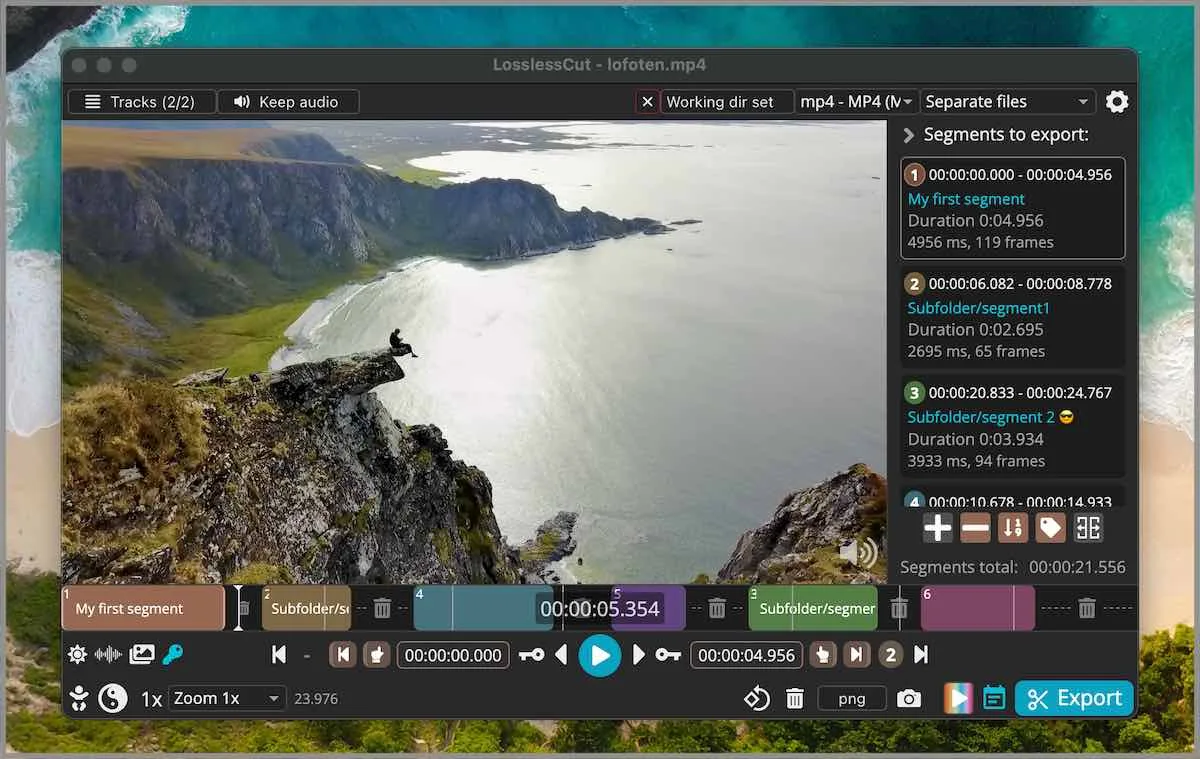
Trimming one clip in LosslessCut takes seven actions, and the keys below are the defaults in version 3.69.0.
- Install LosslessCut. On Windows, copy the winget command, press Win+R, paste with Ctrl+V and press Enter. Or download the official 7z, macOS DMG or Linux AppImage and extract it.
- Open the video. Drag the video into the LosslessCut window or press Ctrl+O (Command+O on macOS).
- Set the start. Move the playhead to the first frame you want to keep and press I.
- Set the end. Move the playhead to the last moment you want to keep and press O.
- Open the export overview. Press E or select the Export button in the bottom right corner.
- Confirm Export. Check the options in the overview, then select Export again to write the new file.
- Play the new file. Open the output from the source folder and watch its first and last seconds before you delete anything.
In short: open the file, press I, press O, and confirm Export in the overview. The official typical workflow lists the same sequence. The original file is not changed, so you can repeat the cut as often as you like.
What are LosslessCut's default keys and settings?
LosslessCut's defaults below were read from the 3.69.0 source, so they match a fresh copy before you change anything in Settings or the shortcuts dialog.
| Action or setting | Default | Source file |
|---|---|---|
| Open a file | Ctrl+O (Command+O on macOS) | menu.ts |
| Set segment start / end | I / O | configStore.ts |
| Play or pause | Space | docs/index.md |
| Step one frame back / forward | , / . | configStore.ts |
| Split the segment at the playhead | B | configStore.ts |
| Export | E, then Export again in the overview | configStore.ts |
| Export mode | Separate files | configStore.ts |
| Keyframe cut | On | configStore.ts |
| Smart cut | Off (experimental) | configStore.ts |
| Project file | On (an .llc project file in the working folder) | configStore.ts |
| Show all shortcuts | Shift+/ | configStore.ts |
Sources: configStore.ts, menu.ts and docs/index.md at tag v3.69.0. Press Shift+/ inside the app to see and change every binding.
Where does LosslessCut save the trimmed file?
LosslessCut saves the trimmed file in the same folder as the source video unless you set another folder with the Working dir unset button at the top of the window. The default name adds the cut times and a segment number, for example Beach Trip-00.00.27.184-00.00.58.000-seg1.mp4, following the template ${FILENAME}-${CUT_FROM}-${CUT_TO}${SEG_SUFFIX}${EXT} in outputNameTemplate.ts. You can change it in the export overview; the file name template guide lists every variable.
LosslessCut also writes a small .llc project file to the working folder so your segments come back when you reopen the video. You can turn that off in Settings.
Why does the trimmed clip start a little early?
A LosslessCut clip can start a little before your I mark because a copy cut has to begin on a keyframe. The troubleshooting guide says the start is normally rounded to the nearest previous keyframe, and Keyframe cut mode is on by default because most common files need it. Smart cut, which re-encodes the first few frames to hit the exact point, is experimental and off by default. Keyframe and Smart cut fixes covers what to try.
How do you keep several parts in one file?
To keep several parts of a video in one file, press + to add a segment for each part and mark each with I and O. Then change the Export mode at the top right from Separate files to Merge cuts before you export. The merged file is named with ${FILENAME}-cut-merged-${EPOCH_MS}${EXT}. Reorder segments by dragging them in the list on the right.
What can't LosslessCut do?
LosslessCut cuts, splits, merges and remuxes, and apart from experimental Smart cut it never re-encodes the picture. It is the fastest way to shorten a video without losing quality, but for titles, transitions or a smaller file you need an editor or converter that renders a new video.
| Job | LosslessCut | Re-encoding editor or converter |
|---|---|---|
| Cut the start and end off a clip | Seconds, no quality loss; start snaps to a keyframe | Frame accurate, but re-encodes the whole file |
| Join several parts of one video | Merge cuts in one export | Timeline editing, then a full export |
| Make the file smaller | Only by cutting length or dropping tracks | Lower the bitrate or resolution |
| Titles, fades, transitions | Not supported | Built in |
LosslessCut cannot compress a video, add titles, fades or transitions, or burn in subtitles, because each of those means re-encoding the picture. For a smaller file, use a re-encoding tool such as HandBrake. Since version 3.69.0 LosslessCut can crop and override the aspect ratio losslessly, by writing bitstream and container metadata instead of new pixels, which works in players that honour that metadata.
Comparing free trimmers before you install? Video trimmer for PC: LosslessCut and five alternatives sets LosslessCut beside Windows Photos, Clipchamp, Avidemux, Bandicut and Shotcut on price, watermark, quality loss and winget install.
Frequently asked questions
What is the winget ID for LosslessCut?
The winget ID is ch.LosslessCut. It is a community package by Chris Huang that repacks the official Windows build from mifi/lossless-cut without modifying it; the manifest is in Microsoft's winget-pkgs catalogue. Update later with winget upgrade ch.LosslessCut.
Is LosslessCut free?
Yes. LosslessCut is open source under the GPL-2.0 licence, and the README says the manual downloads from GitHub will always be free. The Microsoft Store and Mac App Store editions exist to support the developer and update themselves.
Does LosslessCut re-encode the video when it trims?
No. A normal LosslessCut export copies the existing audio and video data into a new file, so there is no quality loss and the export takes seconds. Only the experimental Smart cut option re-encodes a short stretch near the start of each segment.
Does export overwrite my original video?
No. LosslessCut never writes over the input file; the documentation says overwriting it is forbidden by design. The trimmed copy is a new file in the same folder, with the start and end times in its name.
How do I cut out the middle of a video instead?
Mark the part you want to remove as a segment with I and O, then select the Yin Yang button in the bottom left. It inverts the selection, so LosslessCut exports everything before and after the marked part.